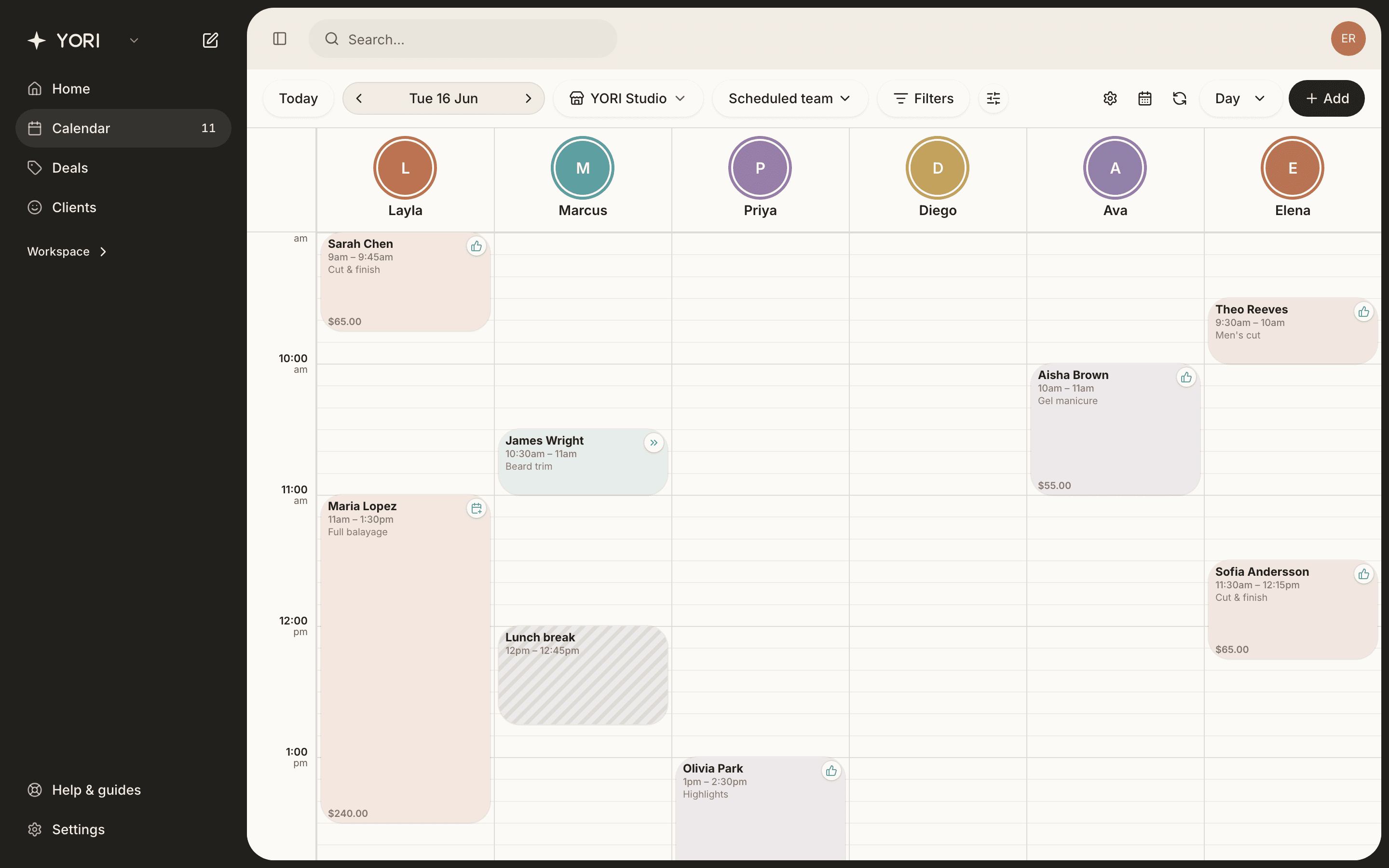
Book an appointment
Create a booking, pick services and a team member, and save.
The calendar is your day-to-day workspace. Each column is a team member and the grid is the day.
- 1Click an empty slot in the calendar (or the New button).
- 2Choose the client, or leave it as a walk-in.
- 3Add one or more services, and the price and duration fill in automatically.
- 4Adjust the team member or time if needed, then Save.
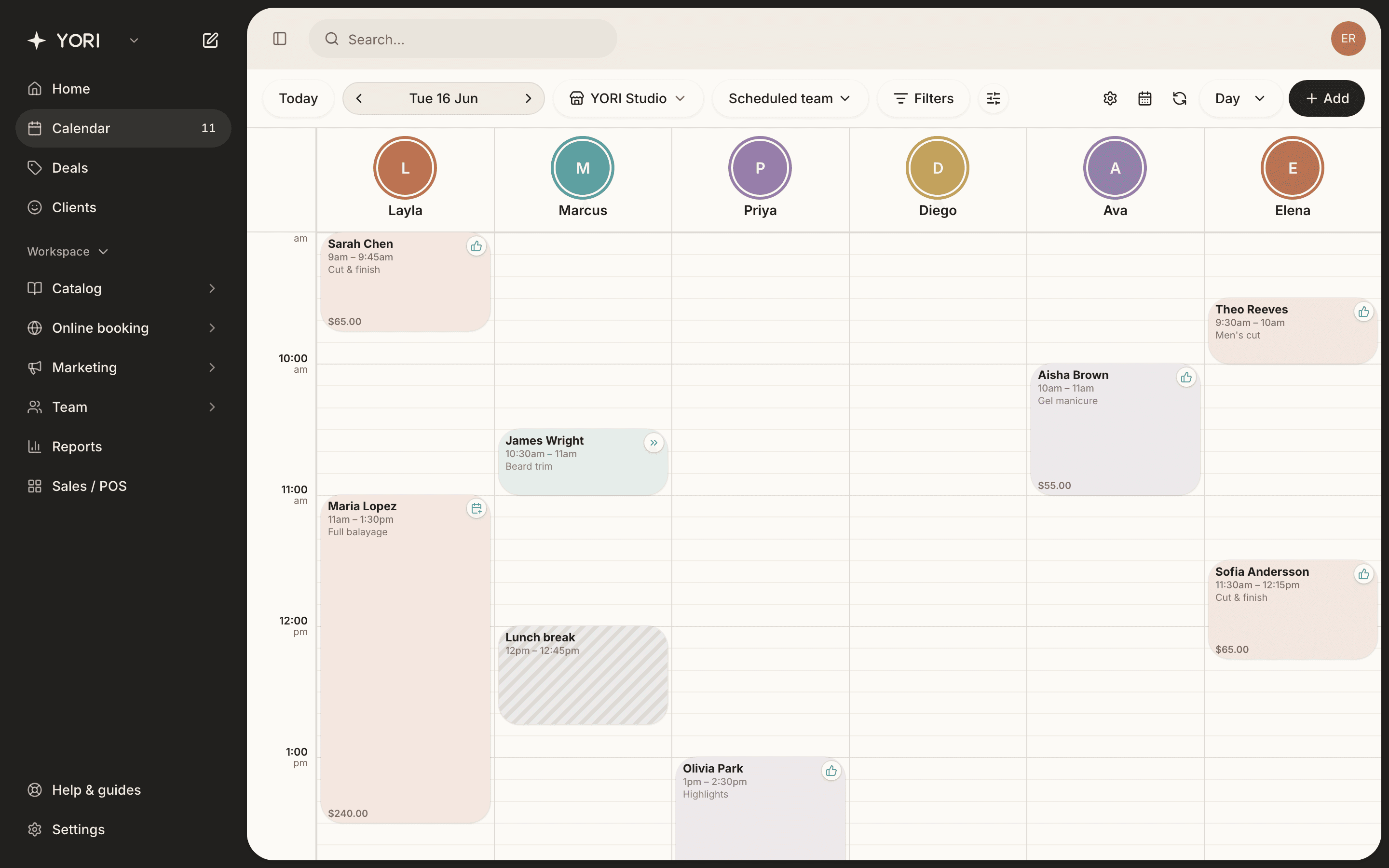
If a service has different pricing for a specific team member, choosing that person updates the price automatically.
FAQs
Block out time
Add breaks, meetings or personal time so clients can't book it.
Blocked time reserves part of a team member's day for something other than an appointment, like a lunch break, a meeting, or admin.
- 1Click the slot you want to block.
- 2Switch to Blocked time, give it a title and a duration.
- 3Optionally repeat it (for example, a daily lunch).
- 4Save, and the slot is now unavailable for booking.
Edit, reschedule or cancel
Update an appointment's status, move it, or cancel it.
Click any appointment to open its details. From there you can change its status, message the client, add services, or check it out.
- 1Open the appointment from the calendar.
- 2Use the status pill (Booked, Confirmed, Arrived, Completed, No-show…) to update it.
- 3Drag the appointment on the grid to reschedule, or open it to change the time.
- 4Use the menu to cancel.