Add team members
Create staff profiles and assign the services they perform.
Team members appear on the calendar and online booking. Each has a profile, a colour, and the services they offer.
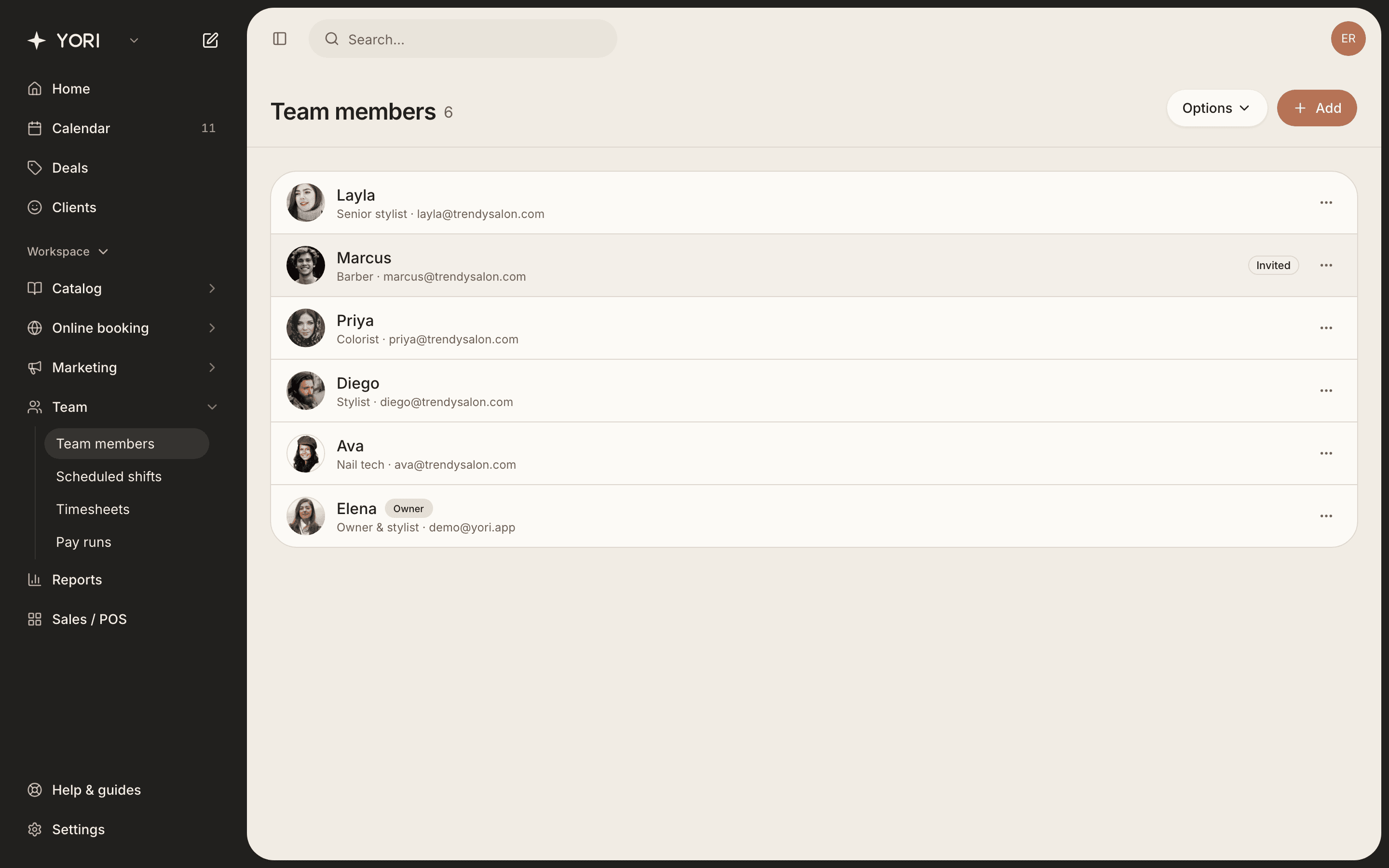
- 1Go to Team → Team members and tap Add.
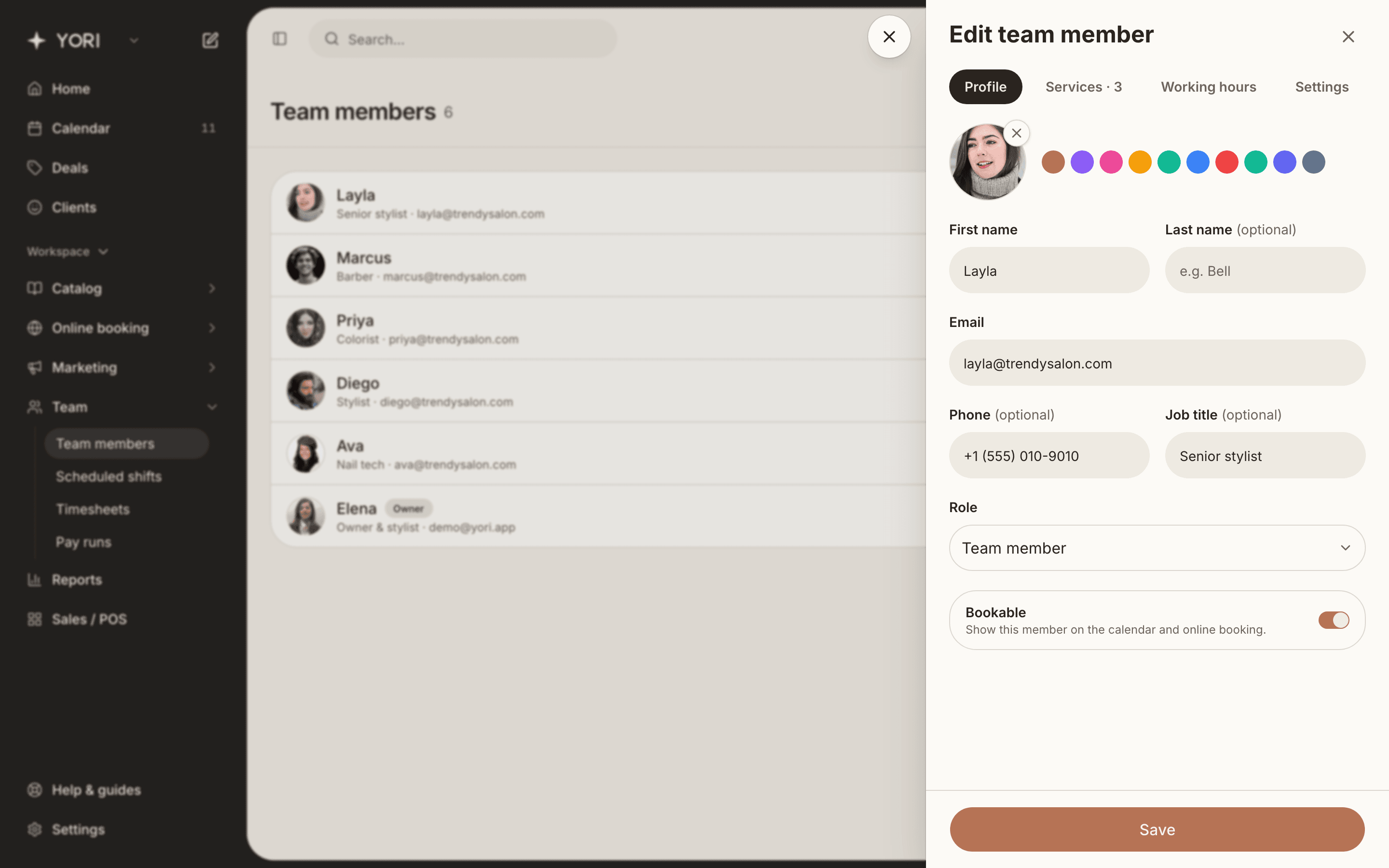
- 2Enter their name, email and job title, and pick a colour.
- 3On the Services tab, choose what they perform.
- 4Save, and an invite to join is sent to their email (see Invites & roles).
Invites & roles
Give team members app access and control what they can do.
Adding a team member sends them an email invite to join your business. You choose their role.
- 1Set the role when you add or edit a member: Admin, Manager, Team member or Front desk.
- 2They click the link in the invite to set a password and join.
- 3Resend or revoke a pending invite from the member's Settings tab.
Owners, admins and managers can edit your catalog, team and scheduling. Team members and front desk have read-only access to those areas.