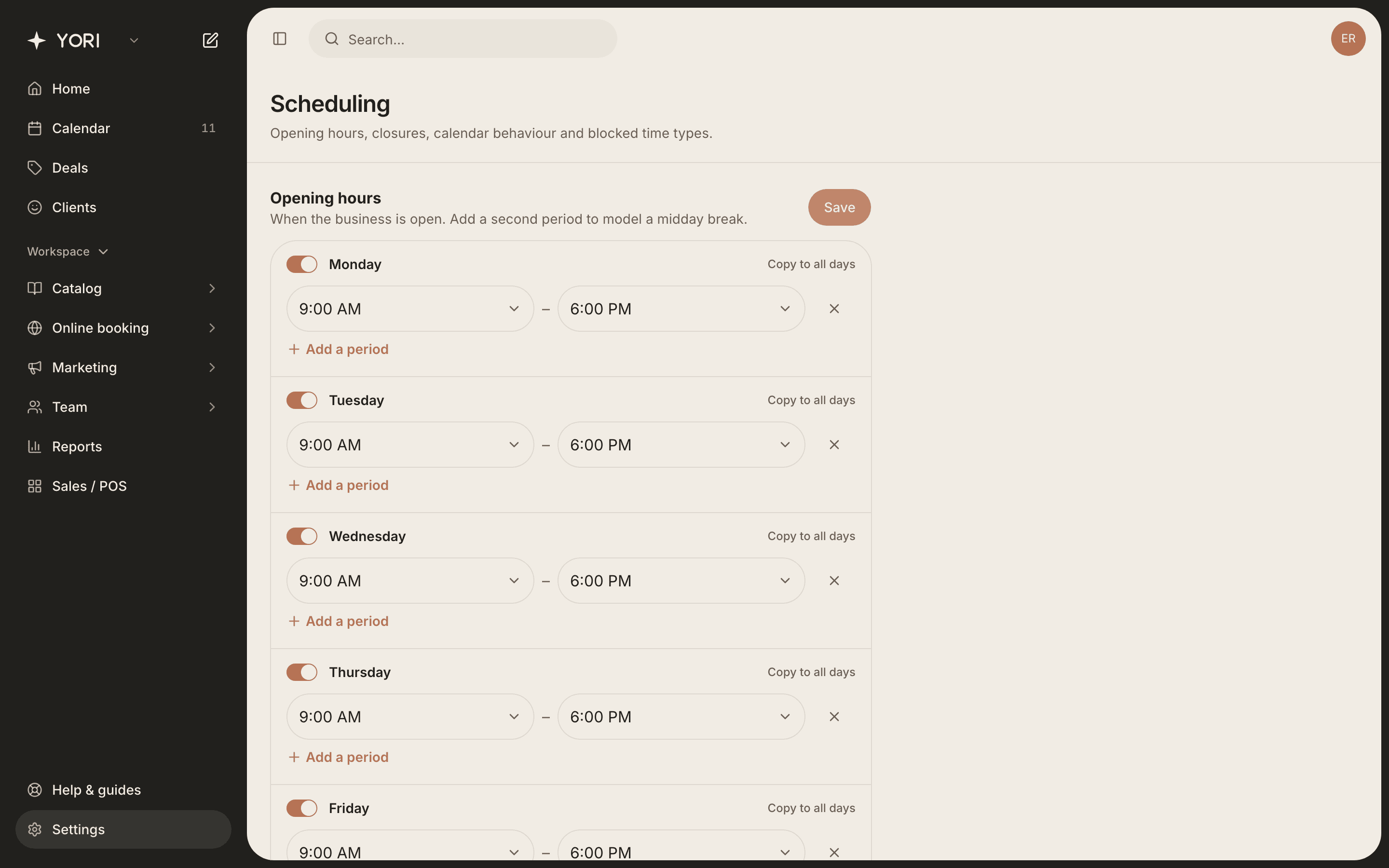
Set your opening hours
Define when the business is open, plus closures and holidays.
Opening hours set when the shop is open. They cap online booking for everyone.
- 1Go to Settings → Scheduling.
- 2For each day, toggle open/closed and set the hours. Add a second period for a midday break.
- 3Use “Copy to all days” to apply one day everywhere.
- 4Add closures & holidays for specific dates the whole business is shut.
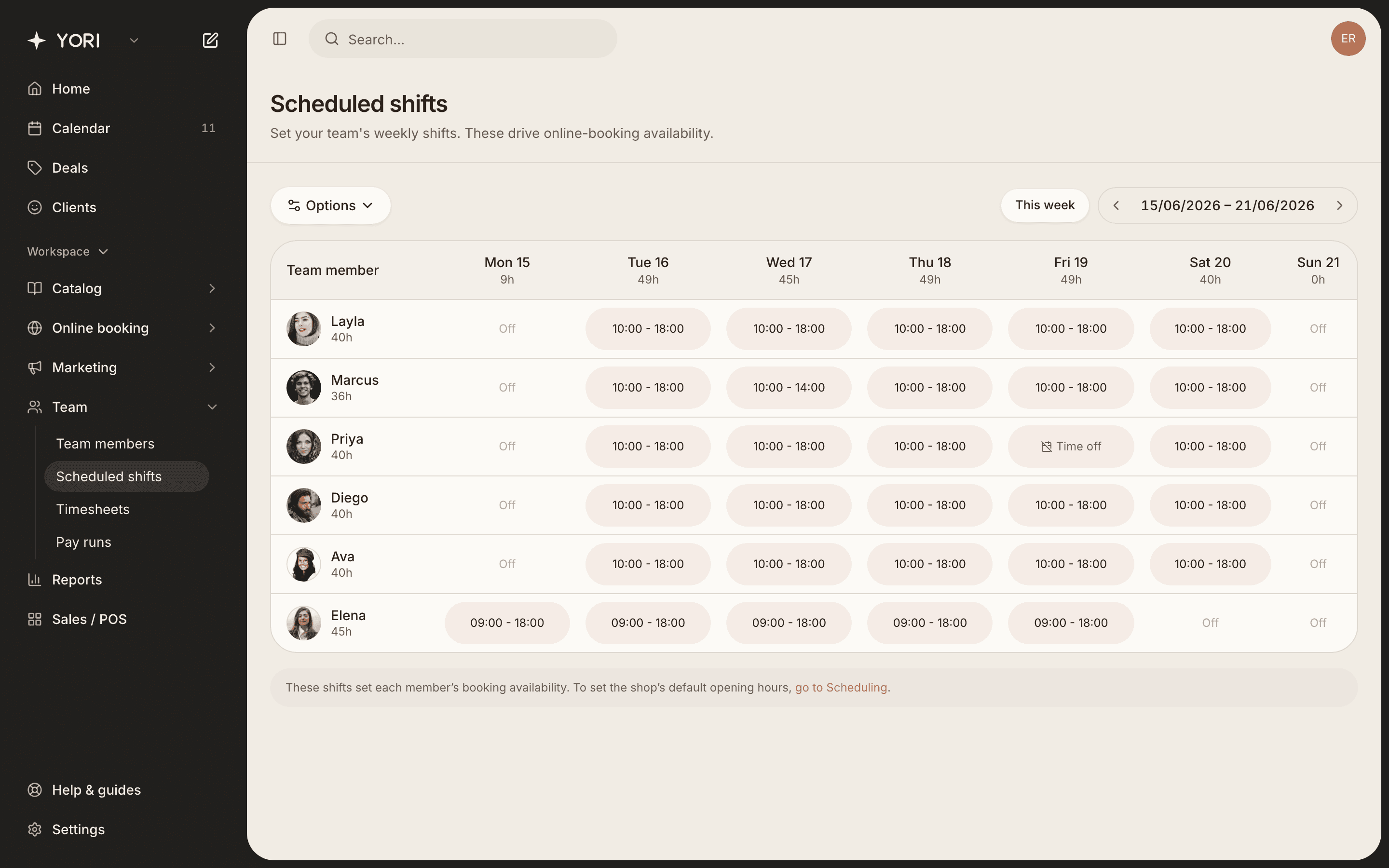
Shifts & time off
Set each person's weekly shifts, edit a single day, and add time off.
Team → Scheduled shifts shows everyone's week. These hours decide when each person can be booked online.
- 1Open Scheduled shifts and use the week arrows to move between weeks.
- 2On desktop, click a day cell; on mobile, tap a team member to open their week.
- 3Edit just that day, set a repeating weekly pattern, or add time off.
- 4Mark a day off, or revert a one-off change back to the weekly pattern.