Your online booking page
Let clients book themselves, 24/7, from a link you share.
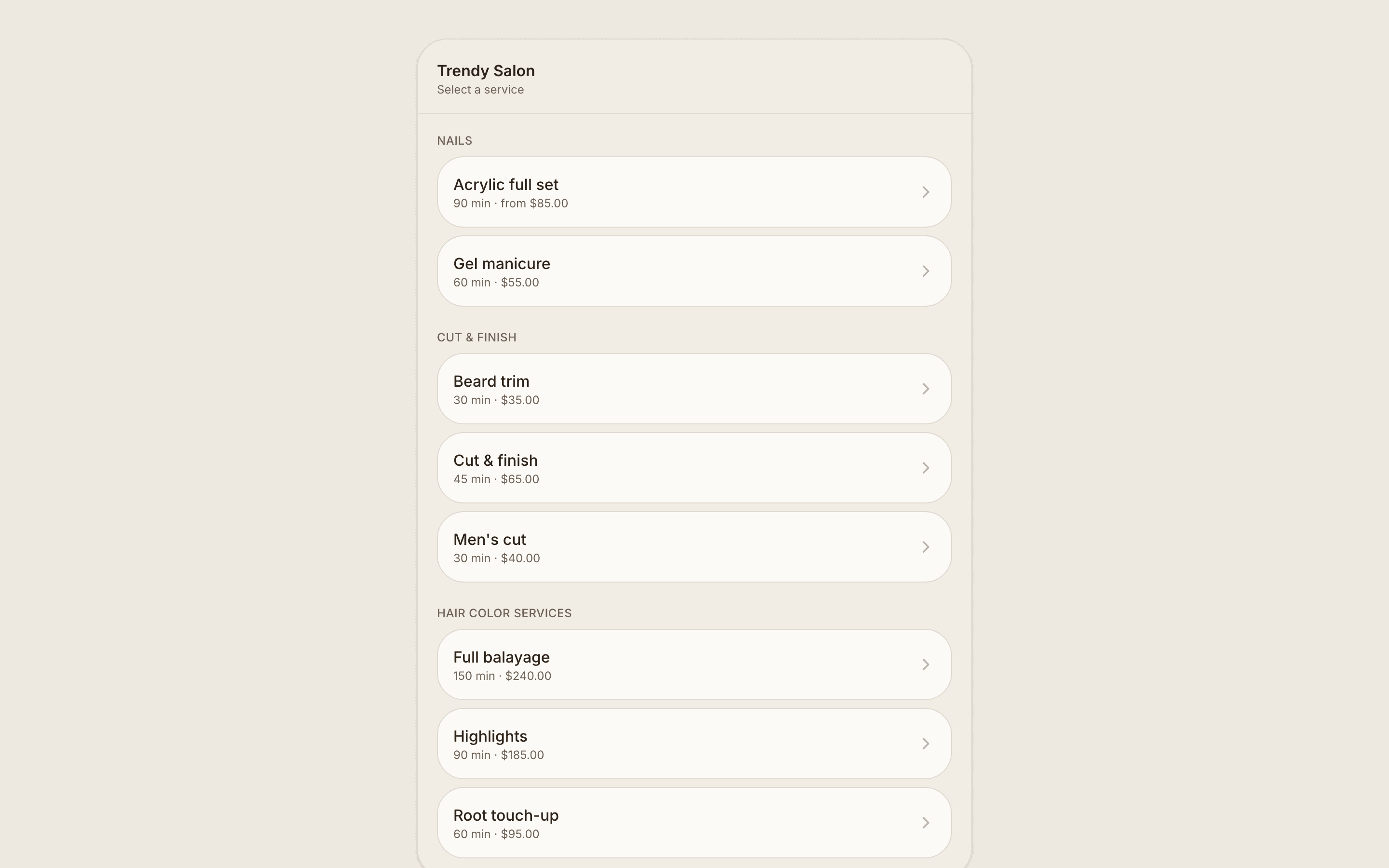
Every business gets a public booking page. Clients pick a service, a professional, a time, enter their details and book, with no account needed.
- 1Make sure services are marked “Available for online booking” and team members have working hours.
- 2Go to Online booking → Links & API to find your booking link.
- 3Share it on Instagram, Google, your website or messages.
FAQs
Online booking rules
Control notice, how far ahead clients can book, and what they can change.
Go to Settings → Scheduling → Online booking rules. Owners, admins and managers can change these; everyone else sees them read-only.
When clients can book
- 1Minimum notice: how soon before the start a time can still be booked online (for example 2 hours).
- 2How far ahead: the furthest day clients can book, from 1 to 365 days.
- 3Slot interval: how far apart the start times offered to clients are (5 to 60 minutes).
Confirming and changes
Turn on “Review online bookings before confirming” to accept each online booking yourself. Choose whether clients can cancel or reschedule online, and the deadline after which they can't.
Team hours and calendars
“Staff hours extend opening hours” lets a team member's working hours be booked even outside your opening hours (closures still apply). Turn off “Staff can see other members' calendars” so staff and front desk only see their own appointments.
Embed it or use the API
Put booking on your own website, or build a custom flow with the API.
On Online booking → Links & API you'll find three ways to integrate.
Embed on your website
Copy the iframe snippet and paste it into your site, and the booking widget appears inline.
Developer API
Create an API key to build a fully custom booking flow. The API exposes your services, real-time availability, and booking creation. Authenticate with the key in an Authorization header.